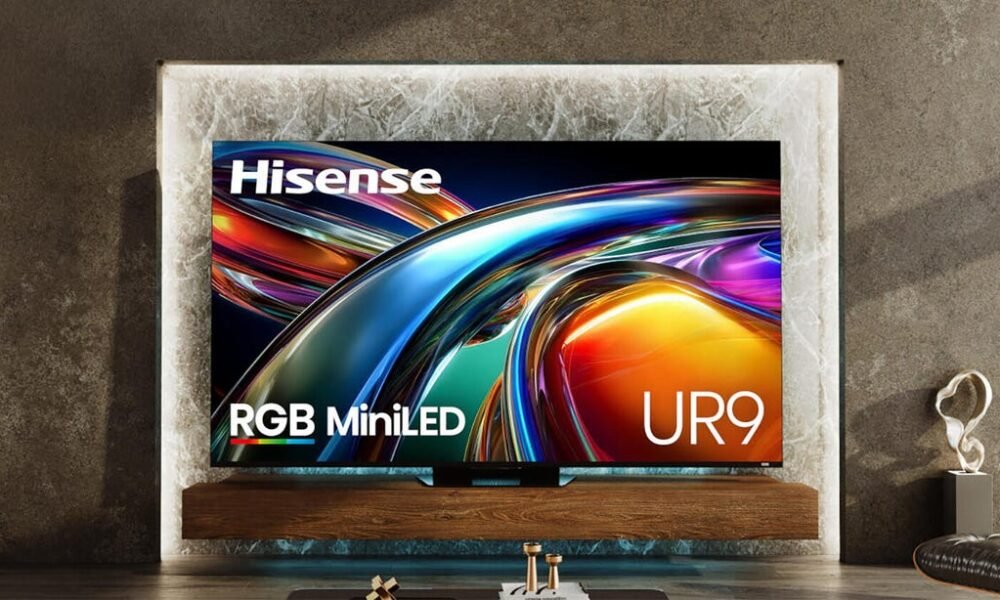
Any new TV, even a top-tier one, can look better after a few quick adjustments. And you don’t need any special equipment, either. For most adjustments, you can judge the results with your own eyes. This applies even to a new Hisense TV — like the recently announced U7 and U6 MiniLED models — which can look even better with a few tweaks in the settings.. Even a simple change such as choosing the best picture mode can radically change how your TV looks. Other changes aren’t intuitive, but also offer big improvements. For example, did you know that reducing the sharpness control can result in a better looking image? Plus, changing these settings won’t harm your TV, and you can always switch back if you don’t like how it looks. Nothing here is permanent.. Ty Pendlebury/CNET. Initial settings. Once you’ve got the TV connected to your Wi-Fi and opted out (if possible) of any data “sharing” policies, you’ll be good to start adjusting the picture settings. With some Hisense TVs, they’re accessible via the Settings menu under Display & Sound, and then under Picture. Other models use different operating systems, or user interfaces, so the picture settings might be in different places within the menu.. Important note: Your Hisense TV might save any changes you make just to a specific input. As in, if you make adjustments to HDMI 1 for your cable box, the picture settings on HDMI 2 might be unaffected. Look for the Apply Picture Settings option if you want to copy your settings from one input to all of them. You’ll still be able to adjust the settings for each input if you want.. Also, on the off chance you haven’t mounted and connected your TV yet, make sure you don’t make these common mounting mistakes. And don’t forget to you connect to the HDMI ARC or eARC output if you have a soundbar or receiver.. Start with the picture mode. The biggest change you can make to your TV’s overall image is by changing the picture mode. This adjusts several different settings all at once, and you can then fine-tune the image from those broad strokes. Many Hisense TVs have a lot of picture modes, but you can break them down into two categories: Vivid (Dynamic), Standard, Sports and PC/Game will have a lot of extra processing, cooler (“bluer”) color temperature and some other features that will look OK with live and sports content, while Theater Day, Theater Night, (sometimes called Cinema) and Filmmaker, will dial back a lot of the extra processing and let scripted TV shows and movies look closer to what their creators intended.. Sports and other live content will still look fine in Theater/Filmmaker modes, but scripted TV shows and movies won’t look as good in the other, non-Cinema/Theater modes. If you watch HDR content (which is most commonly just scripted TV shows and movies), the TV will switch to an HDR picture mode that has additional settings.. If you’d rather not switch picture modes depending on what you’re watching, stick with Theater/Cinema or Filmmaker mode.